If you’ve been relying on SMS for your one-time codes, switching to an authenticator app is one of the simplest security upgrades available. It removes the delivery delays that come with text messages and closes off risks like SIM swapping entirely. Here’s how the setup process actually works.
What an Authenticator App Does Differently
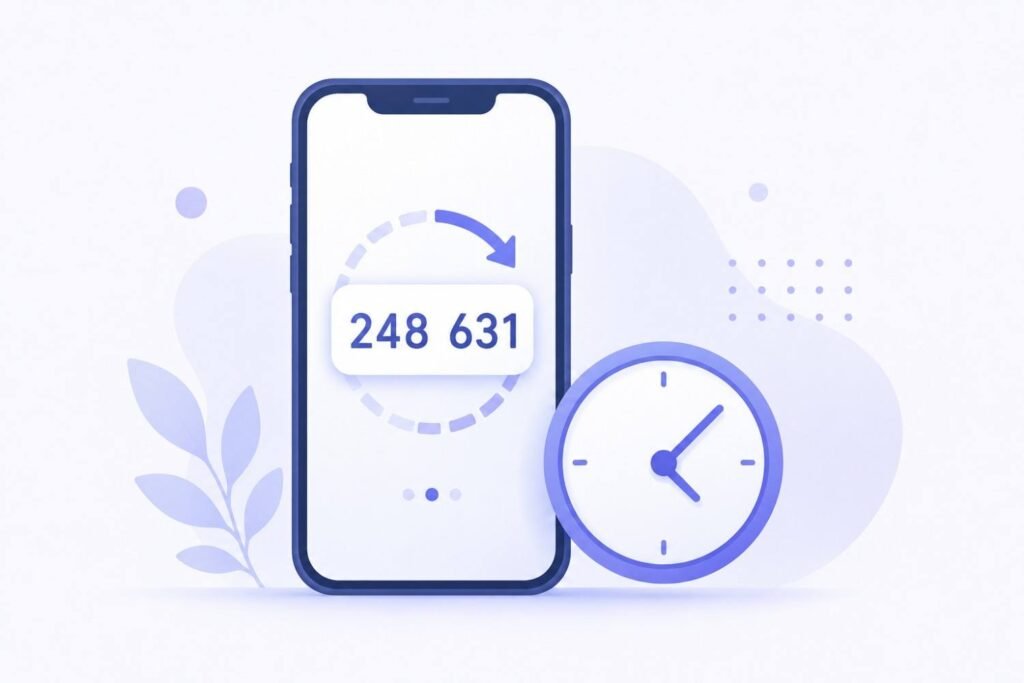
An authenticator app generates OTP codes directly on your device using the TOTP (Time-based One-Time Password) standard. Instead of a server sending you a code by text, your app calculates a fresh code every 30 seconds using a secret key shared between your app and the service you’re logging into. Nothing gets transmitted over SMS at any point, which is why authenticator-based codes work even without cell signal.
Popular apps that support this include Google Authenticator, Microsoft Authenticator, and Authy, among others. Most work interchangeably, since they all follow the same open TOTP standard.
Step-by-Step Setup Process
1. Download an authenticator app.
Choose one from your phone’s app store. Any TOTP-compatible app works, so pick based on personal preference for interface or backup features.
2. Go to the security settings of the account you want to protect.
Look for an option labeled “two-factor authentication,” “2FA,” or “authenticator app,” usually found under account security or login settings.
3. Scan the QR code shown on screen.
The service displays a QR code containing the secret key needed to generate matching codes. Open your authenticator app, choose “add account” or the scan option, and point your camera at the QR code.
4. Enter the confirmation code.
After scanning, your app immediately starts generating a 6-digit code. Type that code back into the website to confirm the setup completed correctly.
5. Save your backup codes.
Most services provide one-time backup codes during setup, meant for situations where you lose access to your authenticator app. Store these somewhere safe and separate from your phone, since they’re your recovery option if your device gets lost or reset.
What Happens If You Lose Your Phone
This is the most common concern people have before switching from SMS to an authenticator app. If you’ve saved your backup codes, recovery is straightforward: use a backup code to log in, then set up the authenticator app again on your new device.
Without backup codes saved, recovery becomes significantly harder and depends entirely on the specific service’s account recovery process, which can take longer and sometimes requires identity verification. This is why saving backup codes during setup matters more than most people initially assume.
Common Setup Mistakes to Avoid
- Skipping the backup codes step. This is the single most common mistake, and the one that causes the most trouble later.
- Setting up the same account on multiple devices without realizing it changes nothing risky. Scanning the same QR code on multiple devices works fine, since all devices with that secret generate matching codes.
- Not checking your device’s clock accuracy. TOTP codes depend on accurate time. If your phone’s clock drifts significantly, codes may not match what the server expects.
The Bottom Line
Setting up an authenticator app takes a few minutes and meaningfully strengthens your account security compared to relying on SMS-delivered codes. The setup process stays consistent across most services: scan a QR code, confirm with a generated code, and save your backup codes somewhere safe. For a deeper look at how these codes actually get calculated, see our guide on what an OTP is and how it’s generated.
Frequently Asked Questions
Can I use the same authenticator app for multiple accounts?
Yes. A single authenticator app can generate separate codes for as many accounts as you set up, each tied to its own unique secret key.
What happens if I switch to a new phone?
You’ll need to set up each account again on the new device, either by scanning a new QR code from each service or by using the app’s backup/transfer feature, if it offers one.
Is Google Authenticator better than other authenticator apps?
Not necessarily. Most authenticator apps follow the same TOTP standard and work equivalently. Differences usually come down to interface preferences and backup features rather than security.
Do I still need my password if I set up an authenticator app?
Yes, in almost all cases. Authenticator apps typically add a second layer of verification alongside your password, rather than replacing it entirely.